Import from Jira or CSV
Bring a Jira Cloud project straight over, or import issues from a CSV export, with a check before anything is created.
Owners, admins and managers can bring work in from other tools in Settings › Import. There are two ways:
- Jira Cloud connects to your Jira site and brings a whole project over: issues, sprints, people, fix versions, comments, logged time and attachments. Run it again to sync while your team moves. Use this if you're moving off Jira.
- CSV file imports issues from a spreadsheet export, from Jira or any other tool.
Test cases have their own importer on the Tests tab; see Test cases and test runs.
Before you import
- Create the project in NaatOps first. Import into an empty project, or one you're happy to add to.
- Your team doesn't need to be here yet. The Jira preview lists everyone in the Jira project. Match each person to a member, or (as an owner or admin) invite them from the preview. Their Jira work waits for them and is theirs as soon as they join.
- Check the workflow. Each Jira status is mapped to one of your project's statuses, so add any you want to keep (such as Code Review) in Settings › Workflows before you start.
Import from Jira Cloud
You need a Jira account that can browse the project, and an API token for it.
- In Jira, open your Atlassian account's Security › API tokens (the Make one in your Atlassian account link on the form goes there) and create a token. Copy it.
- In NaatOps, open Settings › Import. Jira Cloud is the first tab.
- Fill in:
- Into project: the NaatOps project to import into.
- Jira site: your Jira address, such as yourcompany.atlassian.net. You can paste any link from your Jira, and NaatOps keeps just the site.
- Your Jira email and the API token.
- Jira project key: the letters before the issue numbers, such as PAY for PAY-12.
- Only some issues (optional JQL): leave it empty to bring everything, or narrow it, such as created >= 2025-01-01.
- Choose Connect and preview.
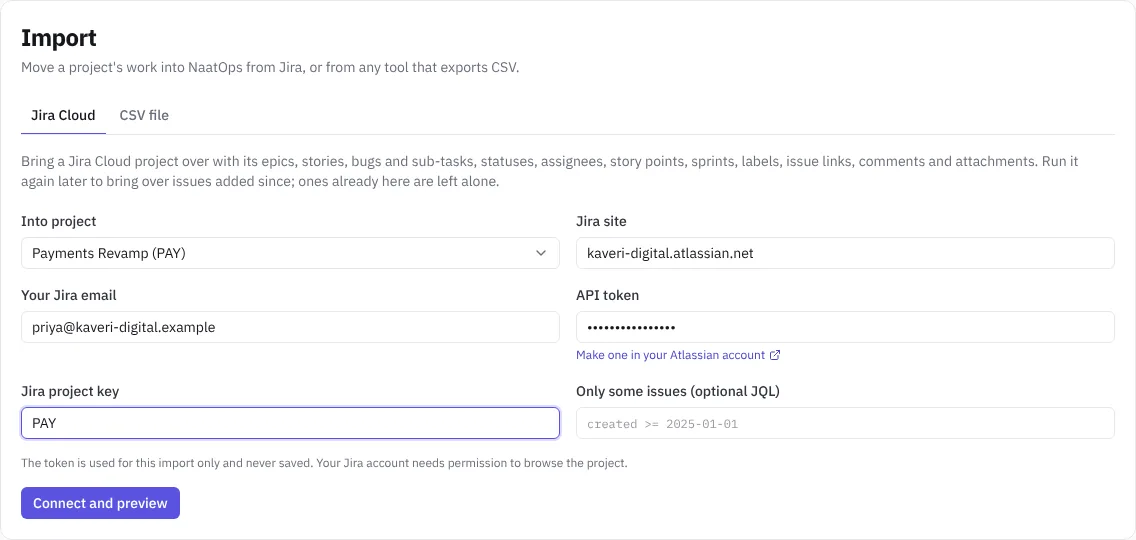 Connecting to Jira
The token is used for this import only and is never saved. Only Jira Cloud addresses ending in atlassian.net are accepted.
Check the preview
Nothing is created yet. The preview shows:
- The Jira project and how many issues it has.
- People: everyone Jira can assign work to, each matched to a member by email or name where NaatOps can. Change any match, or pick Invite by email… to invite someone (owners and admins only). Invite the N people Jira shares an email for picks that for everyone it can in one go. Invited people get an email, and when they join, the issues assigned to them in Jira become theirs. NaatOps remembers these picks for every later import and sync from the same Jira site.
- Statuses: each Jira status and the NaatOps status it becomes. NaatOps matches by name first, so Code Review goes to In Review and Ready for QA to QA, and otherwise picks by status group (to do, in progress, done). Change any that should land somewhere else.
- Logged time, Fix versions as releases, Comments and Attachments, all ticked. Untick any to leave it behind.
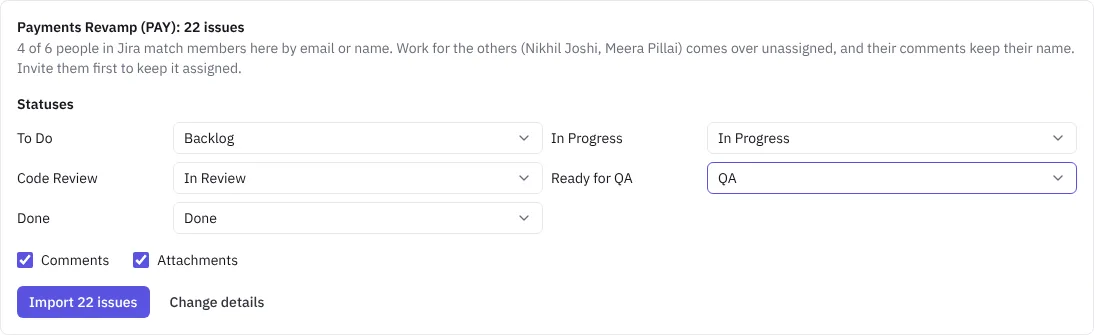 Checking the Jira preview
Choose Import N issues. The import runs in the background with a progress bar. You can leave the page; come back to Settings › Import to see how it's going.
When it finishes you see how many issues came over and their new keys, how many were updated, how many were linked to parents, the issue links, comments, time entries and attachments, the sprints and releases it added, who it invited, anyone left unassigned and any files it couldn't copy. Choose Open the backlog to see them.
 A finished Jira import
What comes over from Jira
- Issues: epics, stories, tasks, bugs and sub-tasks, each under its parent (or its epic, on older Jira projects).
- Fields: status, priority (Jira's Highest becomes Critical), assignee and reporter, story points, labels, components (as labels), due date and the original created date.
- Fix versions become releases, with their release date and whether they shipped. An issue with several fix versions goes in the one due last. A release with the same name already in the workspace is reused.
- Logged time becomes time entries for people who are members, on the day it was logged, with its note. Time logged by people who aren't members yet is counted in the summary but left out.
- Descriptions and comments, with their headings, lists, code, tables, links and mentions. A comment keeps its author when they're a member, and otherwise starts with "Name wrote in Jira:". Comments keep their original date.
- Sprints, with their dates and goal. Closed sprints become completed, the active sprint becomes active and future sprints are planned. Unfinished work from a closed sprint goes back to the backlog, as in Jira.
- Issue links, such as blocks, duplicates and relates to.
- Attachments, copied into NaatOps. Files bigger than the storage limit are listed as not copied.
- Backlog order stays as it was in Jira.
Issues get new keys in your project, in the same order. Each issue's activity notes the Jira key it came from, such as Imported from Jira PAY-4.
Run it again
Running the same import again is a sync, so a team can keep working in Jira while it moves and switch over in an afternoon:
- Issues added in Jira since come over.
- Issues that came over before and changed in Jira take Jira's changes: title, description, status, priority, assignee, sprint, story points, labels, due date, release and parent. Their activity says Synced from Jira PAY-4.
- Edits made here win. If someone changed an issue in NaatOps after it came over, it's left as it is and the summary lists it. New comments, files and logged time on it still come over.
- New comments, attachments and logged time come over. Nothing is ever copied twice, including from imports run before syncing existed.
- Issues deleted here stay deleted.
Untick Update issues brought over before to only bring new issues. Check every issue, not only ones Jira says changed looks at every issue again, which brings over time logged by people who have joined since. A good switch-over is: import, invite the team, let them work in Jira for a day, then sync one last time and stop using Jira.
Only one import runs in a project at a time. If an import stops before it finishes, the page says so; run it again to bring over the rest.
Large projects
Up to 10,000 issues come over in one run. For a bigger project, use the JQL box to import in parts, such as created < 2024-01-01 and then created >= 2024-01-01.
If it doesn't connect
- Use your Jira Cloud address: the site must end in atlassian.net. Jira Server and Data Center can't connect directly; use a CSV export instead.
- Jira didn't accept that email and API token: check the email is the one you sign in to Jira with, or make a new token.
- There's no Jira project …: check the project key, and that your Jira account can see that project.
Each import is recorded in Settings › Audit log.
Import a CSV file
Use this for Jira Server or Data Center, or for any tool that exports a CSV with a header row.
In Jira, open Filters, search for the issues you want, then choose Export › Export CSV (all fields).
- Open Settings › Import and choose the CSV file tab.
- Pick the project under Into project, then choose the CSV file. Up to 2,000 rows at a time.
- Check where each field comes from. NaatOps fills this in from the column names: title (required), type, status, priority, assignee, description, story points, labels, due date, sprint, original key and parent or epic link.
- Under Statuses, map each status in the file to one of your workflow's statuses.
- Look at the first rows, then choose Import N issues.
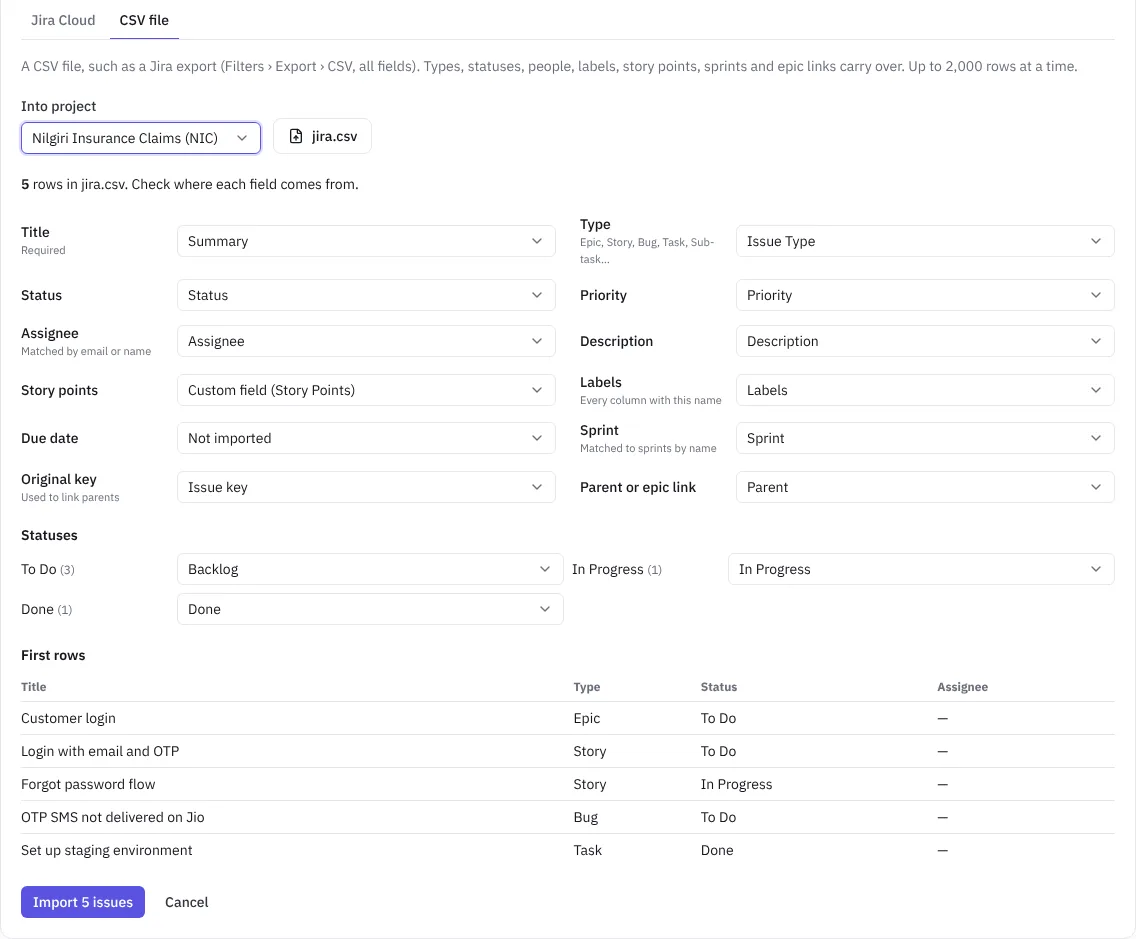 Checking the CSV import mapping
From a CSV:
- Types (Epic, Story, Task, Bug, Sub-task) and priorities come over. Jira's Highest becomes Critical.
- Story points, labels and descriptions come over.
- Sprints come over by name. If the project already has a sprint with the same name (for example Sprint 1), issues go into it. Otherwise NaatOps creates it: sprints whose issues are all done are marked completed, the rest are planned. Start the current one from Sprints after the import.
- Parents and epic links are kept, using the original Jira keys.
- Issues get new keys in your project, such as CP-1, CP-2.
For large backlogs, split the export into files of up to 2,000 rows and import them one after another, parents first. Comments and attachments don't come over from a CSV; use the Jira Cloud import for those.
On yearly Firm Pack plans, we do the migration from Jira and Excel for you.