Test cases and test runs
Write and import test cases, group them in suites, run them and file bugs from failures.
The Tests tab of each project holds its test cases and test runs. Cases are linked to the stories and bugs they prove, so coverage and results show on the issue, on the release and in the client report.
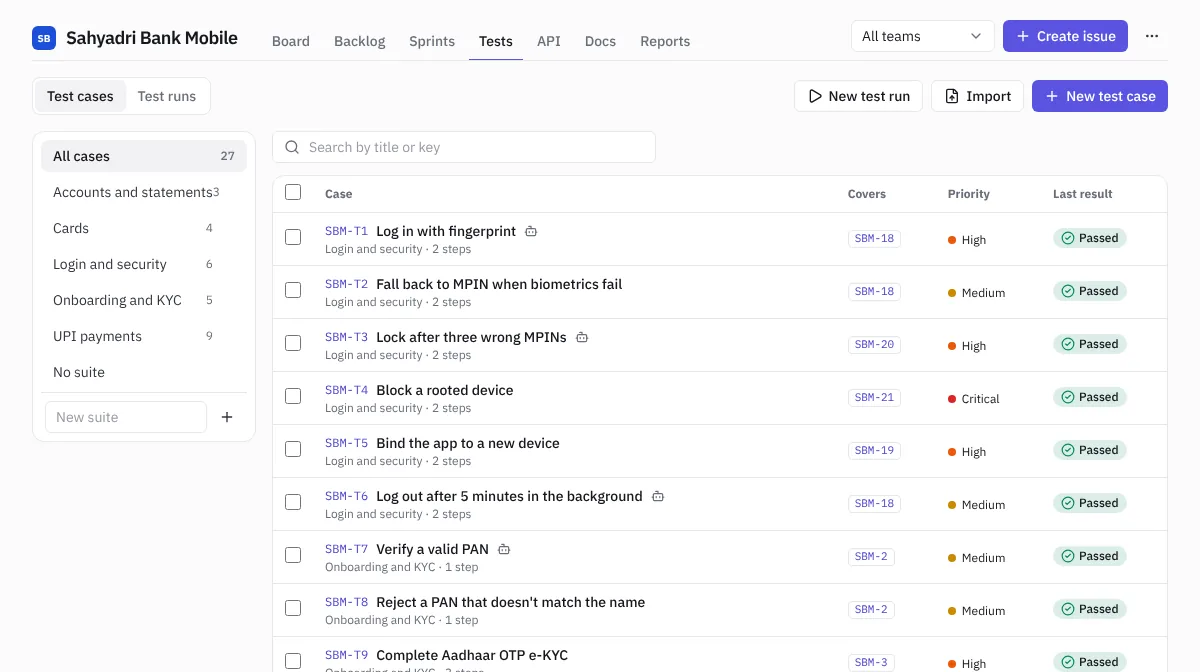 Test cases
Write a test case
- Choose New test case.
- Fill in:
- Title: what is checked, such as Reject an expired card.
- Suite: the group it belongs to, or No suite.
- Preconditions: what must be true first, such as Signed in with a saved card.
- Steps: for each step, the action and the expected result.
- Priority and status (Draft, Ready or Deprecated).
- Covers: the stories or bugs this case proves.
- Automated: tick it if a script already runs this check.
- Save.
Test a story's acceptance criteria
The quickest way to cover a story is from the story itself.
- Put its acceptance criteria in the description as a list under a heading such as Acceptance criteria or Definition of done. Bullets, numbers and checkboxes all work, and so do Jira headings such as h3. Acceptance Criteria.
- In the story's Tests and checks section, choose Test N acceptance criteria.
- Each criterion becomes a test case: the criterion is the title and the expected result, and Given… when… then… criteria split into the action and the result. Edit a title or untick one you don't need, then create them.
The cases are linked to the story straight away. Choose the button again after adding more criteria and only the new ones are offered.
From the same section, Add also writes a case by hand, links an existing case, starts a new API check or links an existing one. Run tests starts a run with the story's cases, tied to its release if it has one, and opens it.
Suites
The list on the left groups cases into suites such as Login and security or UPI payments. Type a name under the list and choose + to add one. Deleting a suite keeps its cases; they move to No suite.
Import from Excel or CSV
- Choose Import.
- Drop an .xlsx or .csv file, up to 5,000 rows. Exports from TestRail, Zephyr and Xray work.
- Check which column fills each field: title (required), steps, expected result, preconditions, suite, priority, status, covers, automated, test data and original ID. Steps can be in one cell per case (numbered) or one row per step joined by the case ID.
- Look at the first cases in the preview, then import.
Story keys in the Covers column, such as MOB-12, are linked to those stories. Old .xls files can't be read: open them in Excel and save as .xlsx or CSV first.
Run tests
- Choose New test run. To run only some cases, tick them first; the button becomes Run N selected.
- Name the run, and choose the sprint, the environment (staging, iOS 18…), the release and which cases: every ready case or one suite.
- Choose Start run.
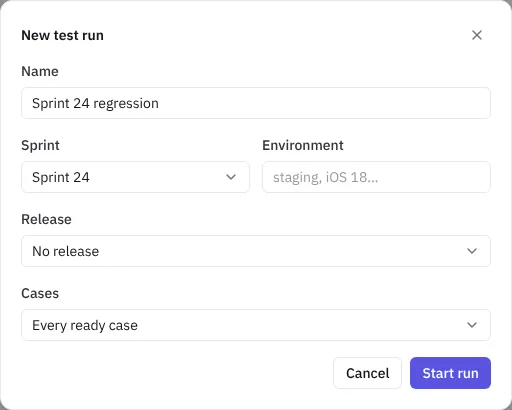 Starting a test run
Record results
The run shows the cases on the left and the selected case on the right, with its preconditions and steps.
- Mark Passed, Failed, Blocked or Skipped. Keys: P, F, B, S. Move with J (next) and K (previous).
- Write the actual result, device and data in What happened. It saves when you leave the field.
- Filter the list to To run or Failed or blocked.
- The bar at the top shows how many cases have run and the pass rate.
- Under the title, Covers names the stories the case proves, one click away.
- A run started for a release shows a Release chip that opens the release.
- When every case has a result, NaatOps says so. Choose Complete run to lock the results.
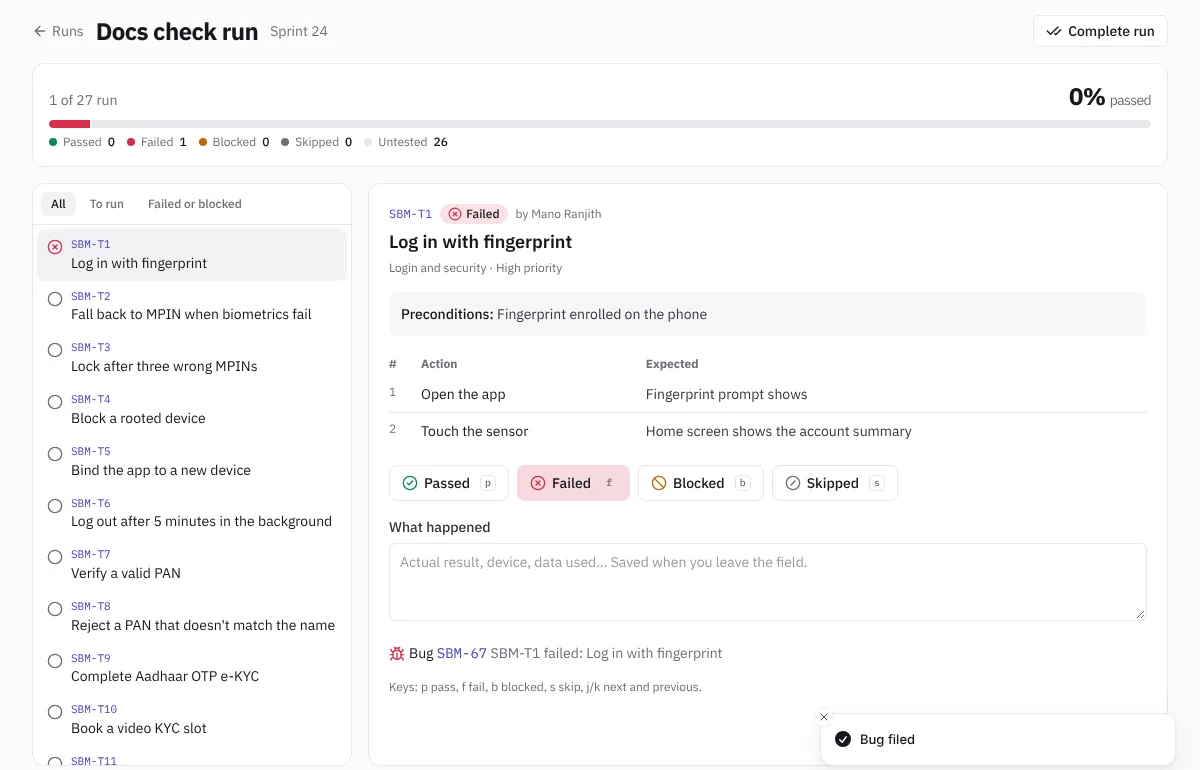 Recording results
File a bug from a failure
After marking a case Failed, choose File a bug. NaatOps creates a bug in the same sprint, with the case, its steps and your notes, linked back to the case. If the run is for a release that hasn't shipped, the bug joins that release, so its readiness counts it. The bug shows in My work › Bugs and on the board, and the bug's Tests and checks section says which case and run found it.
Send automated test results from CI
Your automated tests can report into NaatOps after every build, next to the manual runs.
- Make an API token in Settings › My account and save it in your CI as a secret called NAATOPS_TOKEN.
- Have your tests write a JUnit XML report. JUnit, pytest, Jest (with jest-junit), Playwright, Cypress, Go, PHPUnit and .NET can all do this.
- On Tests › Test runs, choose Send results from CI. Copy the step for GitHub Actions, GitLab CI or Any CI (a curl command) and add it after your tests, so results arrive even when tests fail.
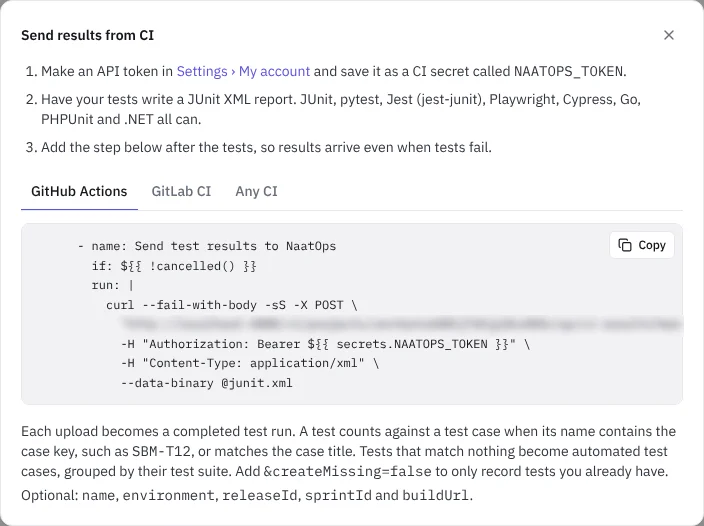 Setting up CI results
Each upload becomes a completed run marked From CI, with a View build link back to the pipeline.
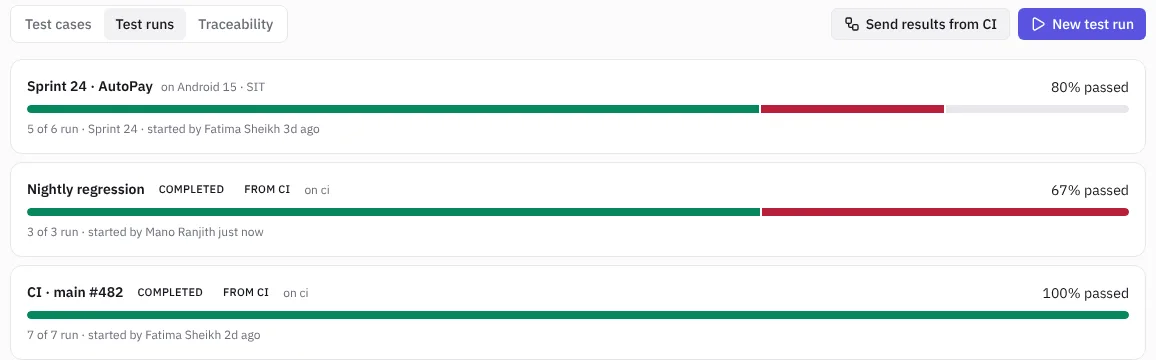 Runs sent from CI in the list
- Matching: a test counts against a test case when its name contains the case key, such as SBM-T12, or matches the case title.
- New tests: tests that match nothing become automated test cases, grouped by their test suite. Add &createMissing=false to the address to record only the cases you already have.
- Failures: the failure message goes into the result's What happened notes, ready for File a bug.
- Optional details you can add to the address: name (the run name), environment, releaseId, sprintId and buildUrl.
CI results count toward coverage and the traceability matrix like any other run.
See coverage
- On a story, Tests and checks lists its test cases with their last results, and API checks, with how many passed.
- In the case list, Covers and Last result show the same from the other side.
- On a release, the Proof column shows each issue's tests and API checks, and Ready to ship? says what is still missing.
Traceability matrix
Open Tests › Traceability for the whole picture in one table: each story, task and request, the test cases and API checks linked to it with their latest results, and any bugs those tests found. Clients and auditors often ask for this before UAT sign-off.
Each requirement is marked:
- Passing: everything linked to it passed last time.
- Failing: a linked test or check failed, or a bug it found is still open.
- Not run yet: it has tests, but none has been run.
- Not covered: nothing is linked to it yet. Add a test case that covers it.
The cards at the top show how much is covered, passing, failing and not covered. Narrow the table by Release, Sprint, Type, Coverage or a key or title. Epics appear only when you pick Epics as the type.
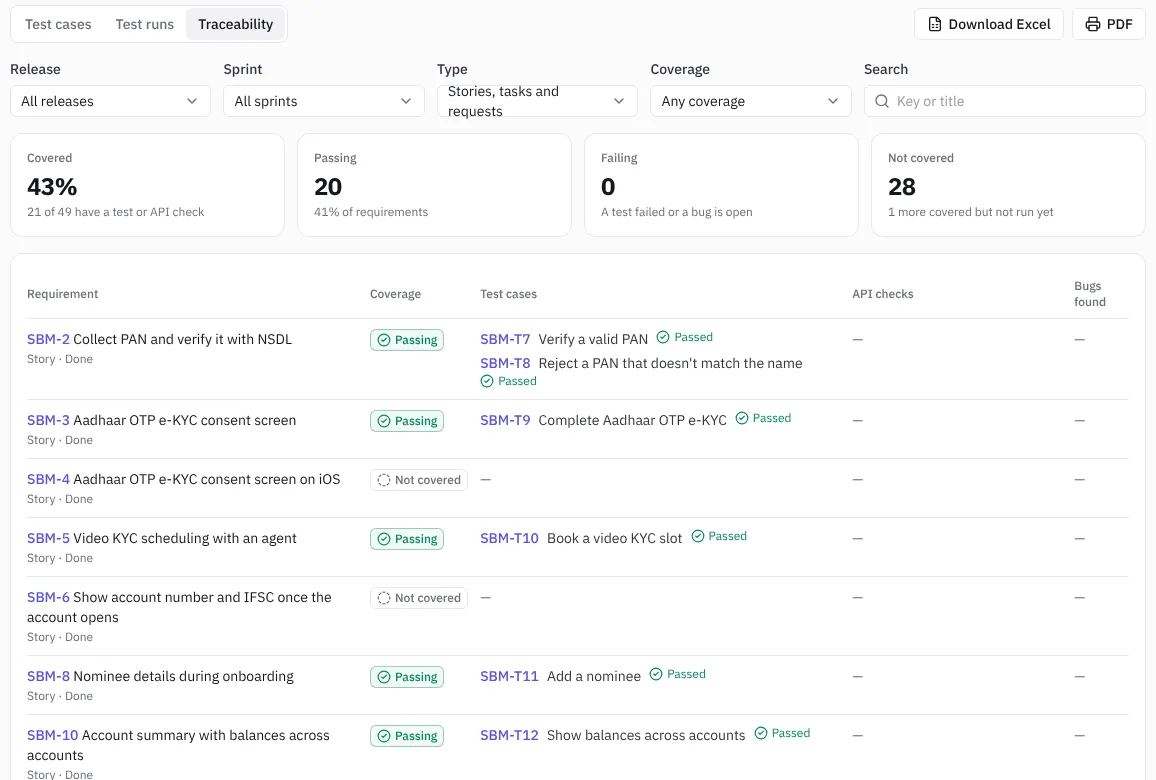 The traceability matrix
- Download Excel saves the rows you're looking at as an .xlsx file.
- PDF opens a printable A4 landscape page. Choose Print or save as PDF to send it to the client.
Plan limits
The Free plan holds 100 test cases and Team holds 1,000. Delivery and the Firm Pack have no limit.