Workspace settings
Time zone, teams, workflows, issue types, custom fields, labels, members, bots and chat alerts.
Open Settings at the bottom of the sidebar. Everyone has a My account tab and can read the workspace tabs. Changing workspace settings needs the role shown under each heading.
Workspace (owners and admins)
- Time zone: decides when sprints start and end and how times read in alerts. New workspaces take the time zone of the browser used to sign up.
- Export your data: Download export (.zip) gives you every project's issues, comments, test cases and runs, docs, API requests, sprints and releases, as CSV files for Excel and JSON files that keep every field. Passwords, tokens and secret API variables are left out. Download attachment files downloads every attached file as a second ZIP, straight to disk, however large.
- Archived projects: restore a project archived from its ⋯ menu.
- Archived issues: restore issues that were archived.
- Delete this workspace (owners only): erases the workspace and everything in it for everyone, including files and the audit log. Type the workspace's name and your password (and a two-step code if it's on) to confirm. It can't be undone, so download an export first. Paid GST invoices are kept, as the law requires.
My account (everyone)
- Password: change the password you sign in with. Your other devices are signed out.
- Two-step sign-in: after your password, NaatOps asks for a 6-digit code from an authenticator app. See Two-step sign-in below.
- Signed-in devices: every browser and app signed in as you, when it signed in and when it was last active. Sign out ends one; Sign out everywhere else ends all but this browser. A signed-out device loses access within 15 minutes.
- Notifications: your email choice, the kinds of updates you want and alerts on this device. See Inbox and notifications.
- API tokens: personal tokens for scripts and integrations. A token acts as you, with your role, and only in this workspace.
- Delete your account: erases your name, email, password and sign-ins and removes you from every workspace. Issues, comments and time you logged stay in your teams' workspaces, shown as by "Deleted user". If you're the only owner of a workspace, make someone else an owner or delete the workspace first.
Two-step sign-in
Two-step sign-in stops someone who learns your password from getting in. You need an authenticator app on your phone, such as Google Authenticator, Microsoft Authenticator, Authy or 1Password.
- Go to Settings › My account › Two-step sign-in and choose Set up two-step sign-in.
- In the app, add an account and scan the QR code, or type the key shown under it.
- Enter the 6-digit code the app shows and choose Turn on.
- Save the ten recovery codes: copy or download them into a password manager. Each one signs you in once if you lose your phone, and they're not shown again.
From then on, sign-in asks for the code after your password. A code works once, and ten wrong codes in a row pause two-step sign-in for 15 minutes.
- New recovery codes makes ten new ones; the old ones stop working.
- Turn off needs your password and a code (or a recovery code).
- If you sign in with single sign-on, your company's sign-in page handles the second step instead.
- To accept an invitation to another workspace, sign in first (with your code), then open the invitation link.
Turning two-step sign-in on or off is recorded in the audit log.
Connect an AI tool (MCP)
NaatOps is an MCP server, so Claude, Cursor, VS Code and other AI tools can look up and change your work without installing anything.
- In Settings › My account › API tokens, make a token (name it after the tool, such as Claude).
- Open Connect an AI tool (MCP) under the tokens. It shows the address and a ready-made setup for Claude Code, and settings to paste into Cursor, VS Code or another MCP client.
- Ask the tool things like "what's left in the current sprint?", "write test cases for PAY-12" or "log 45 minutes on PAY-12".
The tool acts as you: it sees and changes only what your role allows, in this workspace. Revoke the token to cut it off.
Teams (owners, admins, managers)
Create teams, add people and give each a team role: Product Owner, Scrum Master, Tech Lead, Developer, QA, Business Analyst or Designer. Teams filter the board, own sprints and group the capacity view.
Workflows (owners and admins)
The statuses issues move through. By default: Backlog, Ready, In Progress, In Review, QA and Done.
- Add, rename or remove statuses. Each status belongs to a kind: to do, in progress or done. Reports and automation use the kind.
- Move statuses up or down to change the order of the board's columns.
- Transitions: with none set, issues can move between any statuses. Add transitions to allow only those moves, for example so that work must pass QA before Done.
Custom fields (owners and admins)
Add fields your team needs on issues, such as Client ticket, Billable or Module. Types: text, number, single choice, multiple choice, date, person, URL and checkbox. Fields appear in each issue's properties.
Issue types (owners and admins)
Rename issue types, change their colour and description, or turn off types you don't use.
Labels (managers and above can rename or delete)
Labels are added on issues as people type them. Here you can rename, recolour or delete them.
Repositories (owners and admins)
Add Git repositories, get the webhook details to paste into GitHub, make a new webhook secret and set each default branch. See Pipelines and code.
Members
- Invite someone and Pending invitations (owners and admins).
- Active members: everyone in the workspace. Owners and admins can change a role or remove someone here. See Roles and permissions.
Audit log (owners and admins)
A record of every important action in the workspace, newest first. Entries can't be edited or removed, and they're kept for as long as the workspace exists. It records:
- Sign-ins and security: sign-ins, including single sign-on, failed sign-ins with the address and browser, password changes and resets, API tokens and bots.
- People and access: invitations, joins, role changes and removals.
- Billing: billing details, checkouts, payments, cancelling and resuming.
- Workspace settings: time zone, workflow statuses and transitions, issue types, custom fields, labels, automation rules and chat alerts for Slack, Microsoft Teams and Google Chat.
- Projects and work: new projects and teams, deleted and restored issues, deleted releases and increments, share links, archived projects, and changes to someone else's time.
- Exports and imports, Code and pipelines (repositories and production environments) and Docs.
Narrow the list with Search (an email, project key or name), What, Who, and From and To dates. Download CSV saves what the filters show, up to 10,000 rows, for an auditor or a client's security questionnaire.
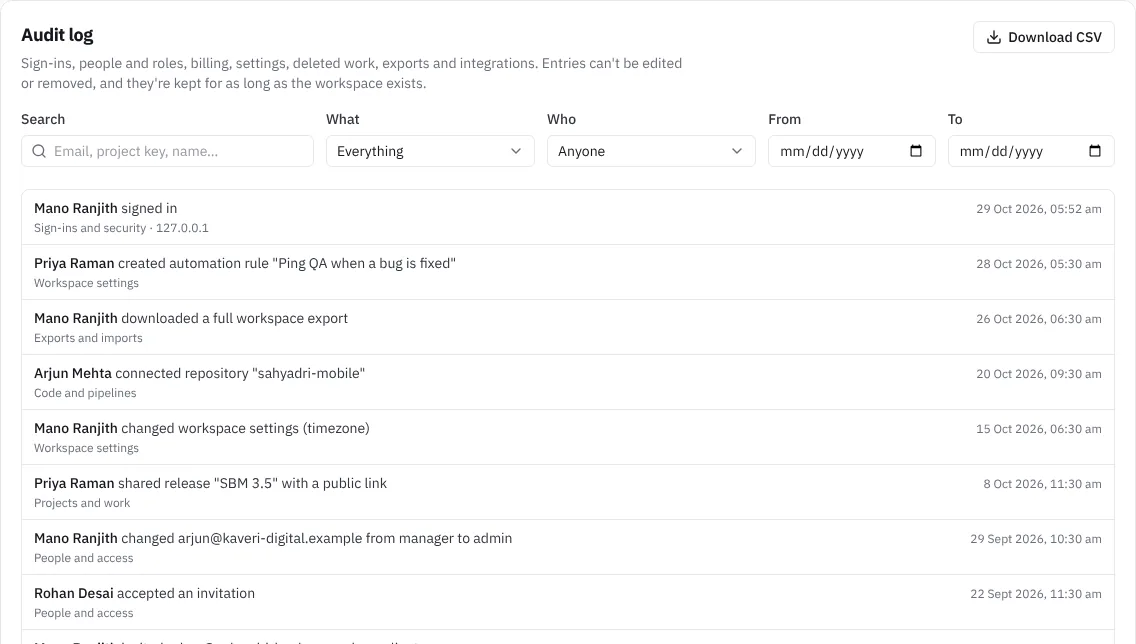 The audit log with its filters
Rates (owners and admins)
Each person's bill rate and cost rate per hour, used by project budgets. See Project budgets and rates.
Billing (owners and admins)
Only owners and admins see this tab. See Plans, billing and invoices.
Bots (owners and admins)
A bot is a non-human member, such as an editor plugin, with its own id, key and role. Its changes show under the bot's name. Create a bot and copy its key straight away: it's shown only once. You can change a bot's role or rotate its key; after rotating, the old key keeps working for about ten minutes.
Chat alerts (owners and admins)
Settings › Chat alerts posts issue changes into the chat your team already uses: Slack, Microsoft Teams or Google Chat. Sprints starting and closing, releases shipping and client sign-offs are posted too, so the team knows what moved without opening NaatOps.
You connect each channel with an incoming webhook URL, which you make in the chat app. No NaatOps account is needed in Slack, Teams or Google Chat.
In Slack: open api.slack.com/apps, choose Create New App › From scratch, name it NaatOps and pick your Slack workspace. Turn on Incoming Webhooks, choose Add New Webhook to Workspace and pick the channel. Copy the webhook URL. Make one webhook for each channel you want to post to.
In Microsoft Teams: in the channel, open ••• › Workflows, choose Post to a channel when a webhook request is received, name it NaatOps and finish the steps. Copy the URL it shows.
In Google Chat: open the space name › Apps & integrations › Webhooks, add a webhook called NaatOps and copy its URL. Webhooks need a Google Workspace account.
Then, in NaatOps:
- Under Slack, Teams, Google Chat and webhooks, choose Add a channel or webhook.
- Pick Where (Slack, Microsoft Teams or Google Chat) and paste the Webhook URL.
- Give it a Name you'll recognise, such as Delivery channel.
- Pick what to Post: New issues, status moves and comments, or Every issue change (also edits such as priority, assignee and title).
- Under Projects, tick the projects it covers. Leave them all unticked for every project, including ones you add later. A release posts to the channels of every project with issues in it.
- Choose Connect, then Send test on the channel to check a post arrives.
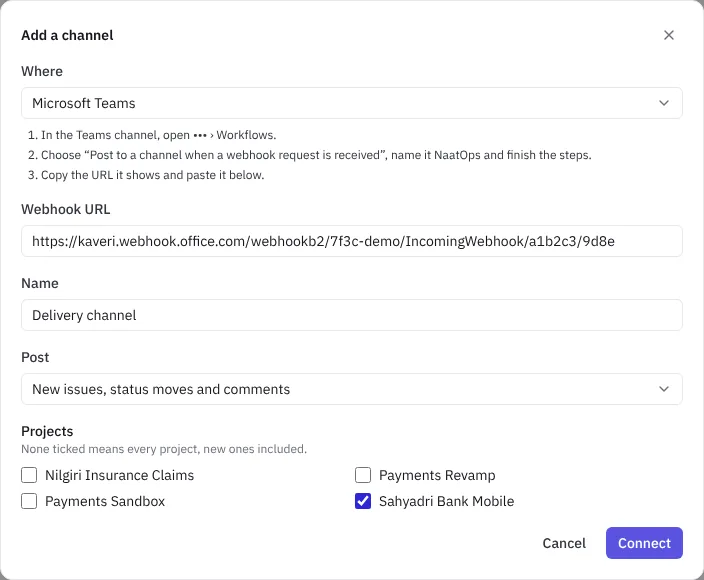 Adding a Teams channel
Each post names the issue with a link to it, what changed, who changed it and when. Sprint, release and sign-off posts link to the sprint or release, whichever events you picked under Post. When several changes happen close together, they arrive as one summary instead of a post each, so the channel stays readable. You can connect several channels, for example one per client project.
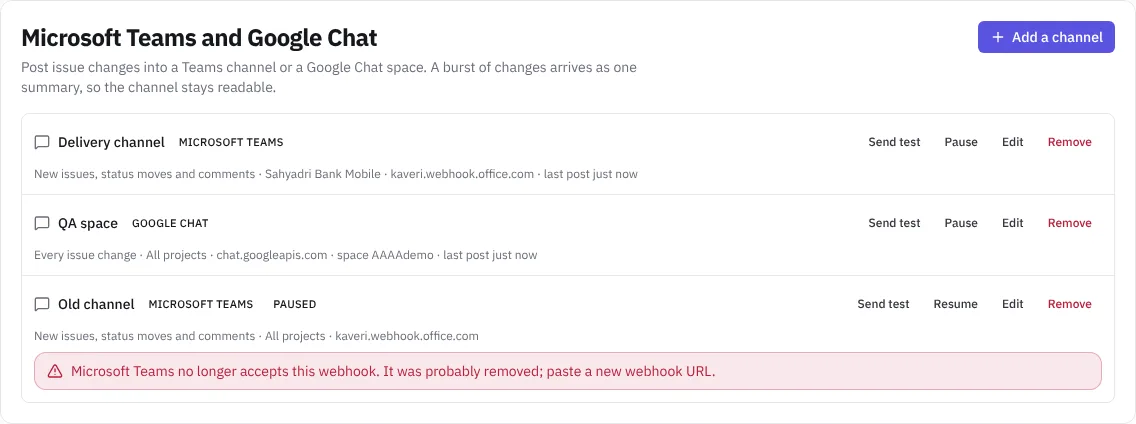 Teams and Google Chat channels in settings
On each channel:
- Send test posts a test message.
- Pause stops posting; Resume starts again from now, without the changes made while it was paused.
- Edit changes the name, what it posts or its projects. Leave the URL empty to keep the current one.
- Remove disconnects it.
The webhook URL works like a password, so it's never shown again after you save it; the list shows only its address. For Slack, Teams and Google Chat, only Slack, Teams workflow and Google Chat addresses are accepted.
If someone deletes the webhook in Slack, Teams or Google Chat, the channel pauses itself and says so. Make a new webhook, choose Edit, paste the new URL and save. If the chat app is down for a while, NaatOps retries for a few minutes before skipping those changes.
Connecting, changing and removing channels is recorded in Settings › Audit log.
Webhooks for Zapier, Make, n8n and your own apps
A webhook sends the same issue changes as JSON to any HTTPS address, so you can start a Zap, a Make scenario, an n8n workflow or your own code when work moves.
- In the other tool, add a step that catches a webhook (in Zapier, Webhooks by Zapier › Catch Hook) and copy its URL.
- In NaatOps, choose Add a channel or webhook, pick Webhook under Where and paste the URL.
- Pick what to Post and the Projects, as for a channel, and choose Connect.
- Copy the signing secret NaatOps shows. It is shown only once.
- Choose Send test. The receiver gets a delivery of type ping.
Each delivery is a POST with a JSON body:
id: a unique delivery id, so you can ignore repeats.type:issue.activity,team.activity(sprints, releases and client sign-offs), orpingfor a test.workspace: its id and name.events: the changes in order. Forissue.activity, each hasaction,detail,at, theactor, theissue(id, key, title and a link) and theproject. Forteam.activity, each haskind(sprint.started,sprint.completed,release.releasedorrelease.signoff),label,title,detail,at, theactor's name, aurlandprojectIds.
To check a delivery really came from NaatOps, read the x-naatops-signature header. It looks like t=1767000000,v1=5f2b…. Work out the HMAC-SHA256 of the text <t>.<raw body> with your signing secret, in hex, and compare it with v1. Reject deliveries whose t is more than five minutes old.
NaatOps only sends to public HTTPS addresses and doesn't follow redirects. Only changes in your workspace are ever sent. If the receiver answers with an error, NaatOps retries for a few minutes and then skips those changes, and the webhook shows the error. If the address is gone (404 or 410), the webhook pauses itself; fix it, then choose Edit to paste a new URL or Resume. To change the secret, remove the webhook and add it again.
Automation and Import
See Automation rules and Import from Jira or CSV.